 OurBrewbot
Temperature probes
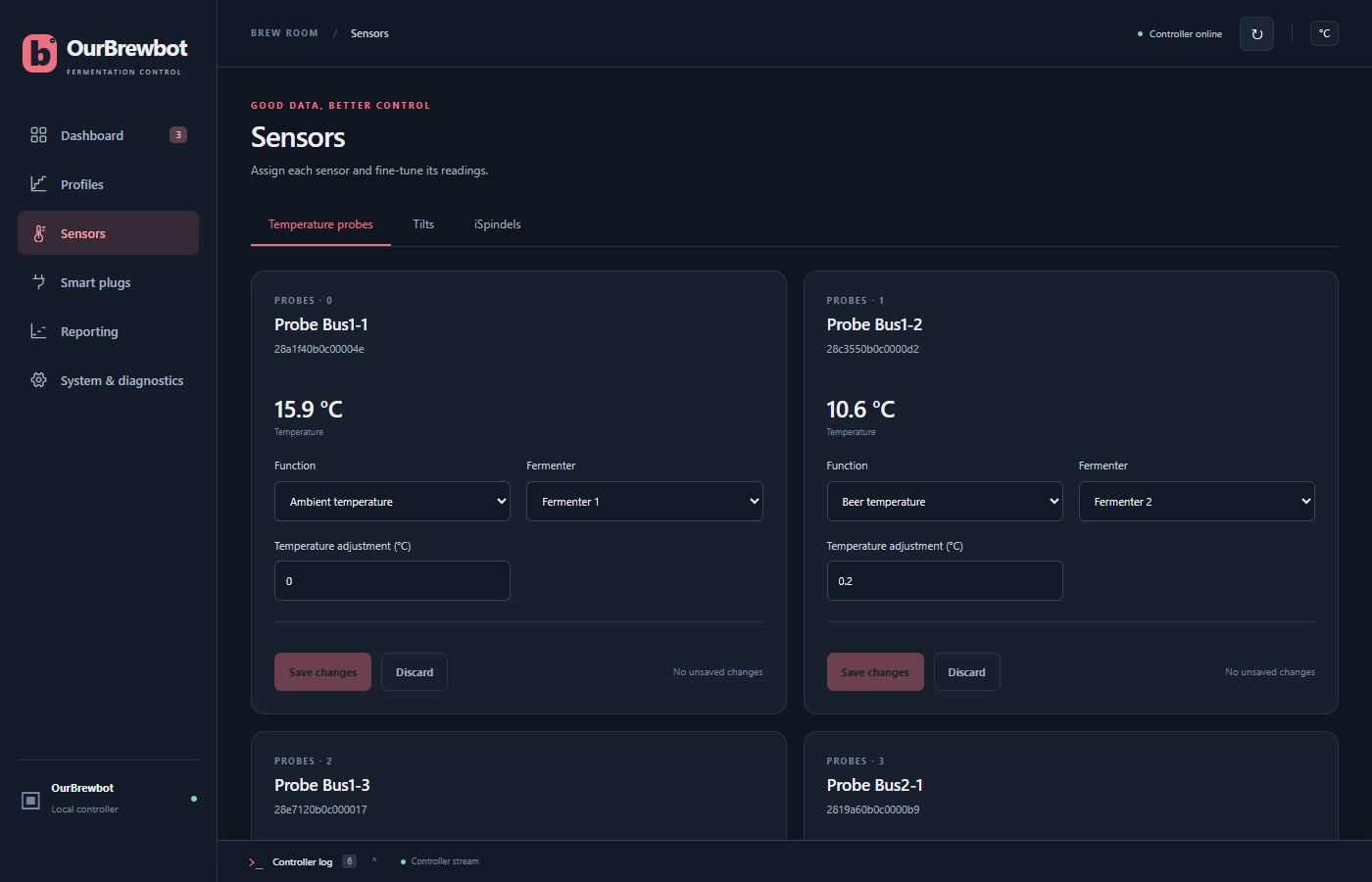
The Temperature probes tab on the Sensors page lists every DS18B20 probe the controller has found on its two jacks, with its current reading. Plug a probe in and it appears here within 30 seconds.
Probe names#
Each probe is named after where it is: Bus1 is the green jack and Bus2 is the black jack, and the number after it is the probe's position on that jack, so Probe Bus1-2 is the second probe on the green jack. You can't rename a probe, and the name changes if the probe is moved, although its settings go with it. The long number under the name is the probe's own address, which never changes, so use it to tell your probes apart.
Setting up a probe#
For each probe, choose its Fermenter and its Function, then press Save changes:
- Beer temperature is the probe in the beer, or in a thermowell. The fermenter is controlled from it, unless the fermenter has a Tilt (see below).
- Ambient temperature is the probe in the air in the fridge or room. It's shown on the Dashboard and sent with the readings. If the fermenter has no beer temperature at all, it's controlled from this probe instead.
- Unassigned leaves the probe unused.
The other functions, Tilt probe, iSpindel probe, Air probe and Control temperature, come from the original MyBrewbot firmware. OurBrewbot doesn't control anything from them, but it does publish them over MQTT with the probe's other details.
Which reading controls a fermenter#
A fermenter can have several sensors. It's controlled from the first one in this list that has a reading:
- Its Tilt, if the Tilt's Temperature reading is set to Beer temperature
- Its beer temperature probe
- Its iSpindel, if set to Beer temperature and still reporting
- Its ambient temperature probe
The Dashboard shows which one is in use under the beer temperature. If none has a reading, the fermenter stops heating and cooling until one comes back.
Calibrating a probe#
Temperature adjustment is added to the probe's reading, to correct a probe that reads a little high or low. For example, if the probe reads 18.4 °C in water that a trusted thermometer says is 18.0 °C, enter −0.4.
How finely the probes measure is the Probe resolution in System settings.